

 Smart Body AnalyzerAHG-2419
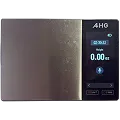 Smart Nutrition ScaleAHG-2432
Yes. One AHG App account can hold all AHG devices, so your readings sit in one place.
If you are a registered user, your app data is permanently synced with the AHG App and securely stored there. If you delete and reinstall the app, or switch to a new mobile device, your data will be downloaded from the AHG App once you sign in to your AHG account.
If you use the app without registration, your data is stored locally on your mobile device only. To prevent losing your data permanently if the app is accidentally deleted, or your device is lost or broken, we strongly recommend making regular system backups. Please note that lost data can only be restored from the most recent backup.
iOS users can read the official guide on how to back up and restore data.
Android users can read the official guide
Changing your password is not possible in the AHG mobile apps. You can only change it via the AHG Health Portal. Follow the steps below:
Please follow these steps to update your email address in the app:
Forgot your AHG password? Use the link to reset it.
No longer have access to your old email? If you can’t access your old email to reset your password, please contact our support team at [email protected]
According to Google the Google Fit Android API has been deprecated as of May 11, 2022 and will no longer be accessible by the end of 2024. For all AHG users who have been using the data sync with Google Fit, we recommend to first migrate their data from Google Fit to Health Connect, and then switch their AHG app data sync from Google Fit to Health Connect. Here is how to achieve this:
Export a PDF or Excel report from the app and share or email it. Choose the data type, the date range and the file format, then tap Share or Email. Take the report to your appointment or send it ahead.
The app is designed to prioritize user privacy and device performance by only activating background data collection when necessary. It does not run constantly in the background, which helps conserve battery and reduce data usage. The app’s background activity is only triggered under specific conditions—primarily when a Bluetooth device becomes available and connects to the app. This means that the app "wakes up" only when there is a relevant event. Users can control this feature through the "Receive data in background" app setting, separately for each paired device that supports background data collection.
If you created your AHG App account using Sign in with Apple and selected Hide My Email, your account is linked to an Apple relay email address instead of your personal email address. To switch your AHG App account to your real email address:
After that, your AHG App account should be linked to your real email address instead of the Apple relay email address.
The app activates background data collection only when necessary, and you can delete any measurement or your whole account from inside the app. The Privacy Policy explains what is collected and how it is used.
You can track measurements from your connected AHG devices, see how they change over time, set medication reminders with dose instructions, build daily routines with gentle reminders, and get notified about meaningful changes. It is available on the App Store and Google Play.
If you’re having trouble importing data, try the following steps:
If these steps don’t resolve the issue, please contact us at [email protected]. Include your app version, the model of your medical device, your smartphone model, and its OS version.
On Android 11 and earlier, the system requires location permission to perform Bluetooth scans. Starting with Android 12, location permission is no longer required, as separate permissions are used for Bluetooth scanning and Bluetooth connection.
AHG does not collect, store, or use your location data for any purpose. For more information, please refer to the official Android documentation.
No. The strips use automatic code calibration, so there are no codes to enter or chips to swap.
Yes, the AHG-2022 works with the AHG App on iPhone and Android.
Six months. Write the opening date on the vial and keep strips at 36–86°F (2–30°C). Test between 41–113°F (5–45°C) at 10–90% humidity.
It stores up to 500 results with the date and time.
The AHG-2022 needs 0.8 µL of fresh capillary blood and shows a result in 5 seconds. It measures from 20 to 600 mg/dL.
Yes. It has a rechargeable 250 mAh lithium polymer battery that charges through the included Micro USB cable. The meter switches itself off 2 minutes after your last action.
The meter, one lancing device, 25 test strips, 25 lancets, a Micro USB cable and the user manual. The lancing device has adjustable depth settings, a lancet installation indicator, forward spring technology to reduce vibration, and a 2-in-1 button and lancet ejector.
Use AHG strips made for the AHG-2022/AHG-2285. They are 8-electrode strips, and the meter checks strip-and-meter compatibility on every test.
Use the dedicated test strip ejector on the meter. It releases the strip so you never handle it after testing.
It stores up to 1,000 results with the date and time and shows 7, 14 and 30-day averages.
About 0.5 µL, the smallest sample among the AHG meters, and it gives a result in around 5 seconds. It measures from 10 to 600 mg/dL.
Two AAA (LR03) 1.5 V batteries, included in the box. It switches off automatically 2 minutes after the last action.
20–70%. Strips also correct for hematocrit interference and compensate for temperature.
The meter, one lancing device, 25 test strips, 25 lancets, 2 AAA batteries and the user manual.
Use AHG strips made for the AHG-2022/AHG-2285. They are 8-electrode strips, and the meter checks strip-and-meter compatibility on every test.
Yes. A large display shows your results and the scale supports offline measurement. When you are online, results sync to the AHG App.
Step on at the same time of day, barefoot, on the same hard, flat surface. Avoid measuring right after exercise, a large meal or a bath. Look at the trend over weeks rather than a single reading. The scale uses 4 AAA batteries.
AHG benchmarks the AHG-2419’s body-fat algorithm against DEXA (dual-energy X-ray absorptiometry) scans — the clinical gold standard for measuring fat, muscle and bone content — to calibrate its dual-frequency, 8-electrode readings. A home scale is a trend-tracking tool, not a diagnostic device, but this calibration is what lets the AHG-2419 track meaningfully closer to your true body composition than single-frequency, feet-only scales.
Ask your doctor before using any body composition scale.
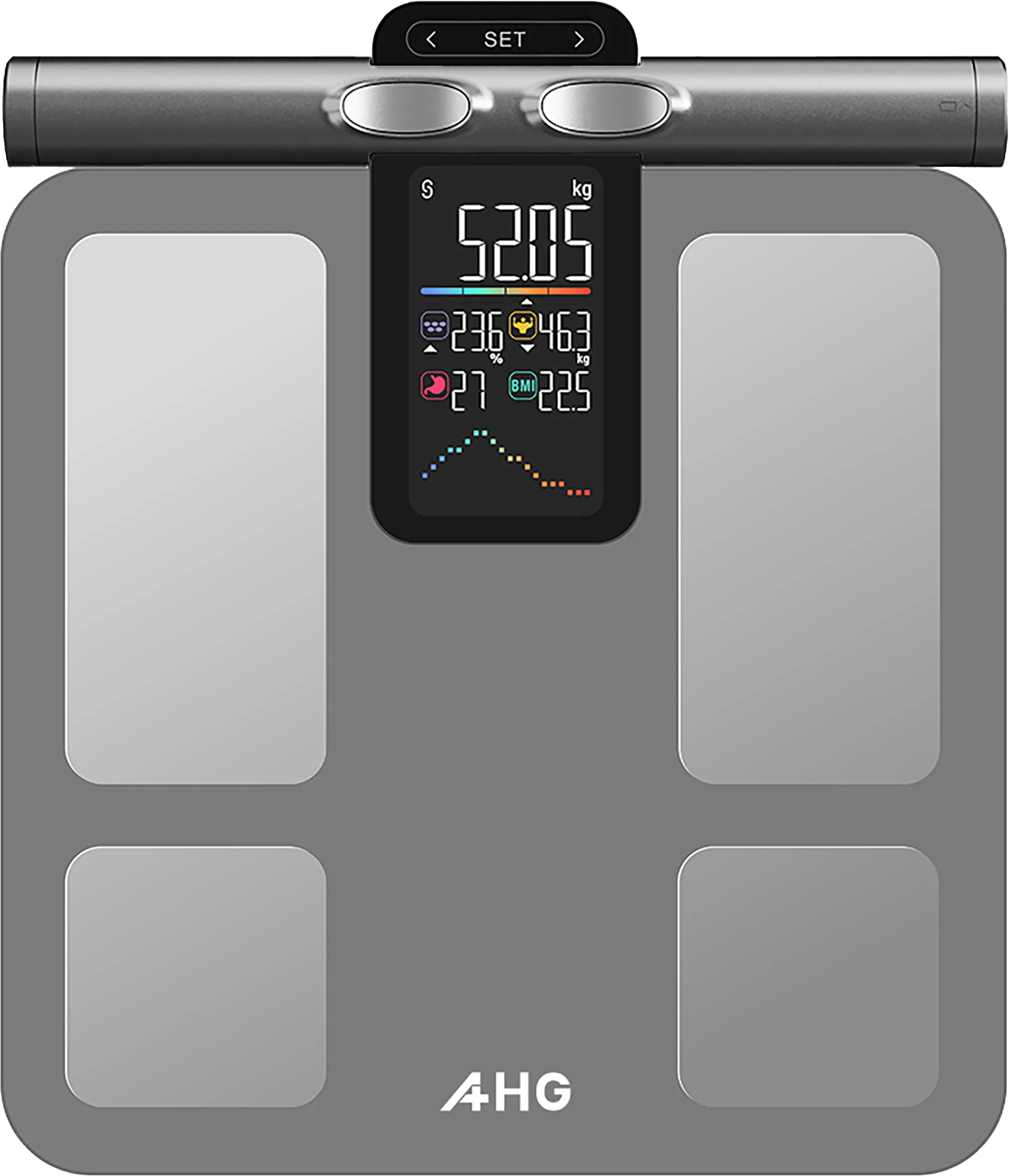
The AHG-2419 tracks up to 58 body-composition data points from one scan — weight, body fat %, muscle mass, bone mass, body water, visceral fat level, basal metabolic rate, BMI, body age, waist-to-hip ratio, a segmental (arms/legs/trunk) breakdown, and more — all viewable in the AHG App.
BIA (bioelectrical impedance analysis) sends a safe, low-level electrical current through your body and measures how much it resists, since fat, muscle and water each conduct electricity differently. The AHG-2419 uses 8 electrodes — 4 in the platform for your feet and 4 in the handle for your hands — and measures at two frequencies, so current passes through your full body rather than just your legs, for a more complete reading than single-frequency, feet-only scales.
180 kg (400 lb, 28 st). You can switch between kg, lb and st.
Standing on a scale alone only reads your legs. The AHG-2419 adds a handle with 4 more electrodes, so current also runs through your arms and torso, giving a fuller picture than feet-only scales. The handle’s cable uses shielded 9-core wiring to reduce interference and a self-locking design to reduce pulling force on your arms during the reading.
Yes. It connects by Bluetooth 5.0 to the AHG App to support calorie tracking.
Yes. It has a built-in food list of up to 50 items (with up to 20 marked as favorites) that you sync from the AHG App, so you can weigh and log familiar foods offline. For new foods, a barcode scan, or the full 1.2 million-item database, you’ll need the app connected.
It has a rechargeable 1,000 mAh lithium battery that charges through the included USB Type-C cable.
Place an empty container on the scale and press Tare to zero it out, then add your food for the net weight. If the container weighs more than 450 g, the display shows a small “T” as a reminder that a tare is active; under that weight, it simply zeros out without showing “T”.
Up to 5 kg (11 lb), with a minimum weight of 2 ± 1 g.
iOS 15.0 or later, or Android 7.0 or later. Bluetooth pairing also requires Location Services to be turned on for the app, on both iOS and Android.
A 4.3-inch TFT display with touch controls, so it is easy to read and wipe clean.
Weight, water, milk (volume) and tare modes. Units are g, kg, ml, fl oz, oz and lb:oz.
Yes. The AHG-2778 has an IPX7 waterproof rating.
A full charge takes 8 hours or less through USB-C fast charging. The battery is a 2,000 mAh lithium-ion cell.
Sonic vibration of 48,000 strokes per minute at 65 dB or less.
15, including Polish (for a brighter-looking smile), Strong (for effective plaque removal) and Sensitive (gentle care for teeth and gums).
Smart Zone Detection guides you across your mouth, the Smart Pressure Sensor warns against brushing too hard, and the Smart LCD Display shows real-time brushing feedback.
Every three months, or sooner if the bristles look worn, which is the usual dental guidance. Two C-Series brush heads come in the box.
Toothbrush has brush head changing counter and reminder.
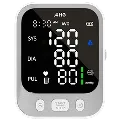
No. One touch starts a measurement and the large 3.7-inch LED display shows the result. The AHG-300 is also listed as a connected device in the AHG App for tracking over time.
It uses the oscillometric method with an accuracy of ±3 mmHg for blood pressure and ±5% for pulse. Range: 57–255 mmHg systolic, 25–195 mmHg diastolic, pulse 40–199 bpm.
Press and hold the START button for about 5 seconds until the unit setting appears, then press the SET button to choose mmHg or kPa. The monitor saves your choice and uses it for future readings.
By 4 AAA batteries or a 5 V DC supply through the included USB Type-C cable, so you can use it at home or on the go.
Two users, each with 199 stored readings, plus a guest mode.
“Er 1”, “Er 2” and “Er 3” mean the cuff pressure wasn’t stable enough to take a reading — sit still, make sure the cuff is snug, and try again. “Er U” means the cuff isn’t connected properly, and “Er H” means it over-inflated. Codes “Er 23″–”Er 26” point to an internal fault; if one repeats, contact AHG support. For any error, remove the cuff, wait a minute, and retest.
The AHG-300 shows a WHO Blood Pressure Indicator bar next to your reading, based on where your systolic and diastolic numbers fall. A white bar means the monitor is idle and hasn’t taken a reading yet.
| Bar color | What it means | Systolic (mmHg) | Diastolic (mmHg) |
|---|---|---|---|
| Green | Normal range | 90–139 | 60–89 |
| Yellow | Mild high blood pressure, or a low reading | 140–159, or below 90 | 90–99, or below 60 |
| Red | High blood pressure (hypertension) — consult your physician promptly | 160 or above | 100 or above |
It prompts you to stay still during a measurement, because movement is a common cause of unreliable readings.
The monitor checks that the cuff is worn correctly and alerts you if it is not, so you can fix the position before the reading.
Talk to your doctor before using the AHG-300 if you have a cardiac pacemaker or another implanted electronic device, have had a mastectomy (measure on the other arm), or have open wounds, an IV line, or a cast on the measuring arm. Involuntary movement, tremor, or poor circulation can also affect accuracy.
The cuff is adjustable to fit a wide range of upper-arm sizes, 22–42cm (8.6–16.5in).
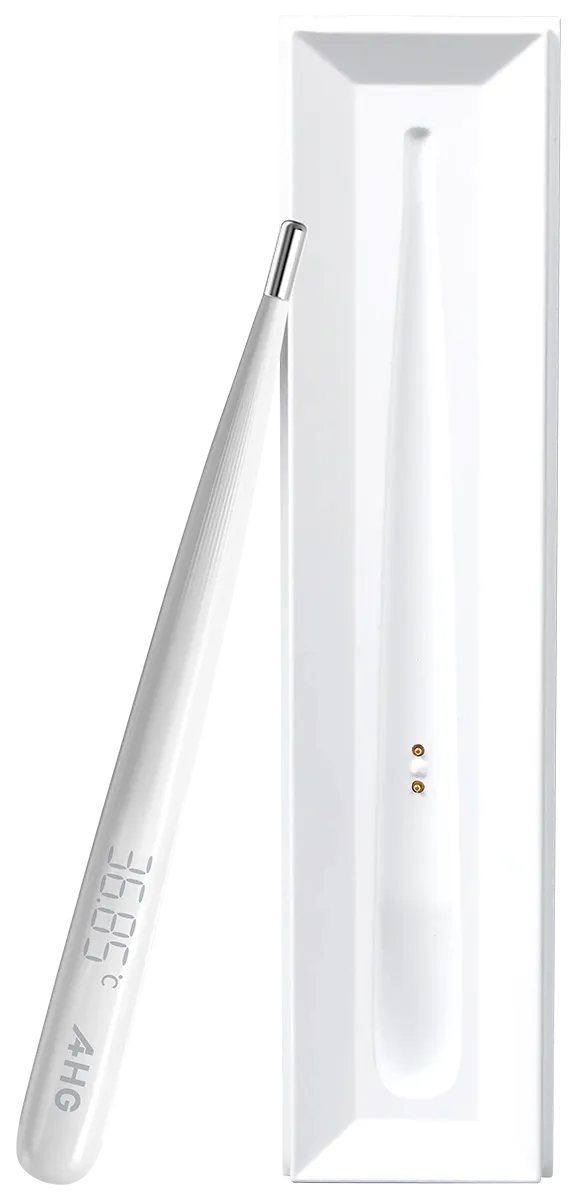
No — the AHG-372 doesn’t switch between units on one device. AHG sells two separate versions, a °C model and a °F model, each built for its market. Check your product listing or the display on your unit to confirm which version you have; either way, the thermometer stores your last measurement.
Laboratory accuracy is ±0.10°C (±0.18°F) and clinical accuracy is ±0.3°C (±0.54°F) or better. It measures 32.00–43.00°C (89.60–109.40°F) with 0.01°C (0.02°F) resolution.
The thermometer is rechargeable (3.7 V lithium-ion) and charges in its charging case, which runs on 2 AAA batteries.
About 15 seconds in predictive mode. In actual measurement mode the thermometer keeps measuring in real time for greater precision.
The fever alert lights orange when the reading is above 37.5°C (99.5°F).
Under the arm (axillary). Place the tip in the center of a dry armpit and keep the arm pressed to your side until the reading is complete.
Yes. Units are switchable. The meter measures 20–600 mg/dL (1.1–33.3 mmol/L).
Yes. The AHG-427B has Bluetooth 4.0 and syncs results to your smartphone through the AHG App.
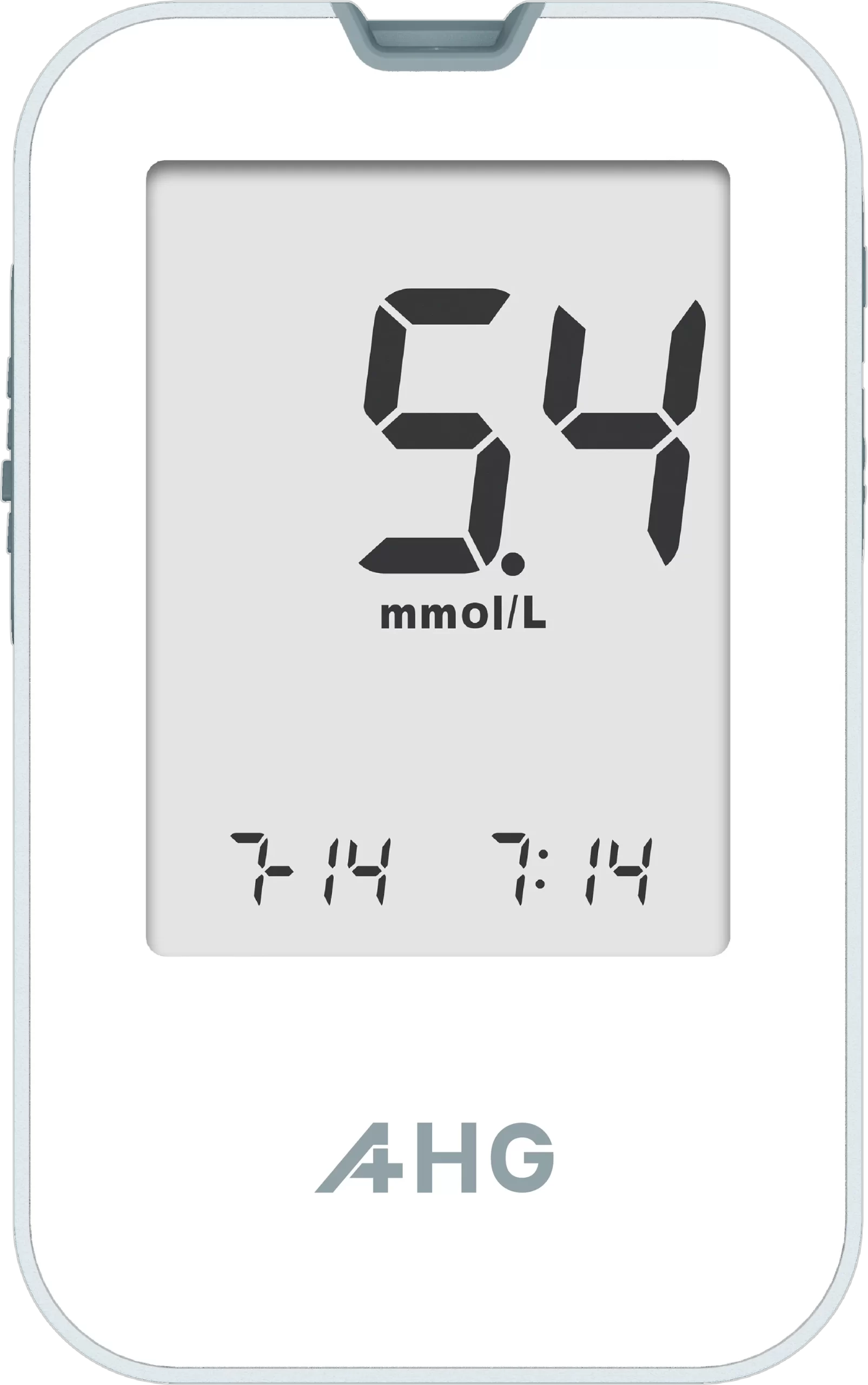
Press the S button — the measurement unit (mg/dL) will flash on the display. Press and hold the M button for 2 seconds to switch between mg/dL and mmol/L, then press S again to confirm your selection. All future results display in the unit you chose.
Up to 500 tests on two AAA alkaline batteries.
It has a large backlit display, so you can read results in low light.
The meter, 30 safety lancets, 25 test strips, 25 alcohol pads, 2 AAA batteries and the user manual.
Test between 10–40°C (50–104°F) at 15–85% relative humidity. Store the meter between -20°C and 55°C.
7, 14, 21, 30, 60 and 90-day averages, across up to 500 stored results with date and time.
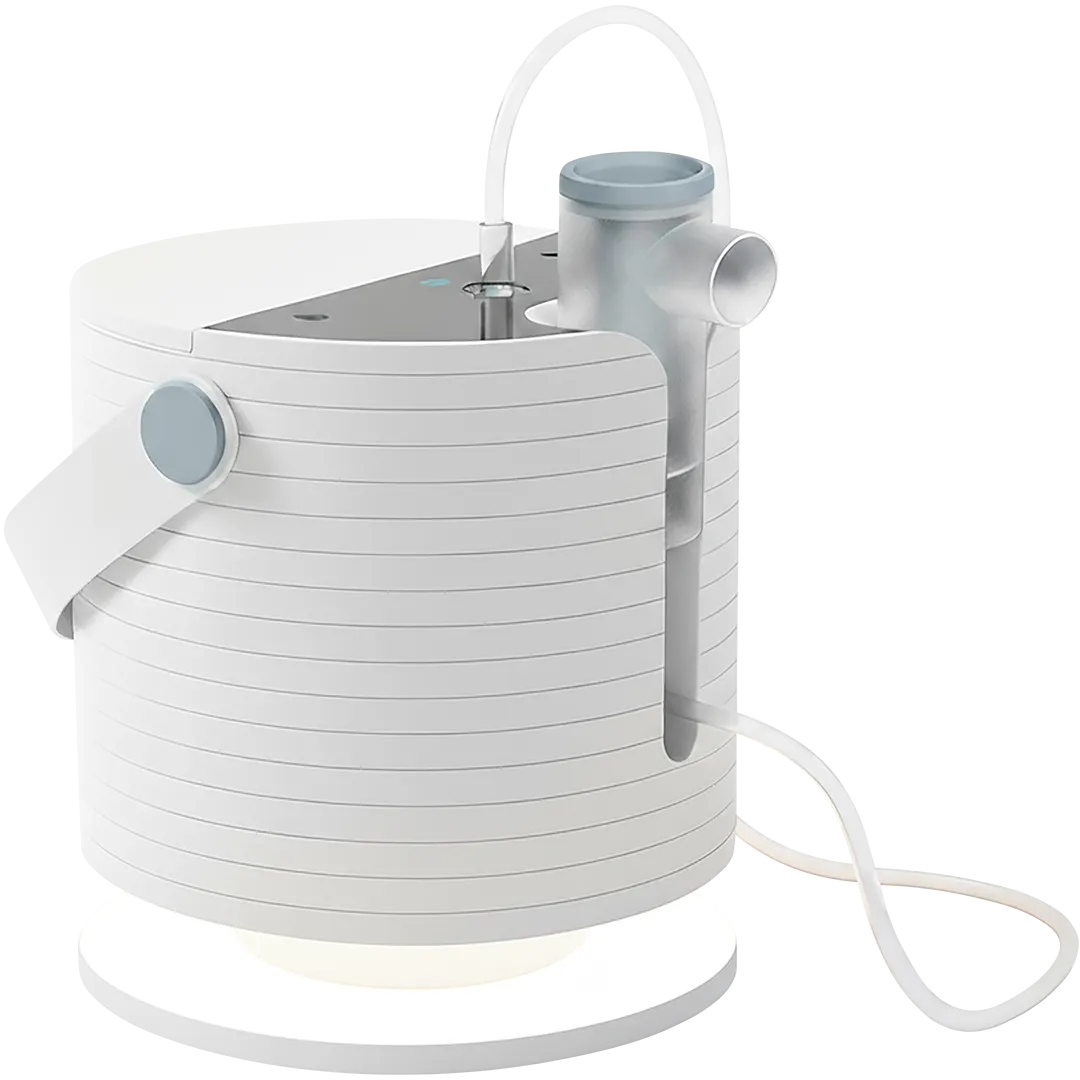
Yes. The box includes adult and child masks, a medicine cup, an air tube, a mouthpiece, the power cable according to country’s plug standard and the user manual.
Yes. The AHG-900 ships with the voltage and plug type matched to the market it’s sold in — for example, AC 120 V/60 Hz with a US-style plug for the US market, or AC 230 V/50 Hz for markets that use that standard. Check your product listing or the label on your unit to confirm the version for your region.
70 dB or less.
2–8 mL.
Particle size is 0.5–6 µm, with a mass median aerodynamic diameter (MMAD) below 5 µm.
Use only medication prescribed by your healthcare professional, and check the user manual for compatible medications and cleaning steps after every use.
Yes. Each lancet is sterilized by gamma irradiation and is single-use only.
Pick a single lancet from the dispensing-style pack without touching the others, which keeps the remaining lancets clean.
Twist to remove protection cap, press to on the finger to prick, then dispose of it safely. The needle retracts automatically after use and stays enclosed.
100 sterile lancets.
A two-spring design that gives smooth, controlled penetration without needle vibration so sampling is more comfortable.
28 gauge, 0.36 mm needle diameter, 1.8 mm penetration depth.
For capillary blood sampling in point-of-care testing and diabetes monitoring, at home or in a clinical setting.
Yes. Every AHG meter, monitor and scale shows your results on its own display, it measures and stores readings offline, then syncs to the app the next time you’re connected. The app is optional and adds history, trends, reminders and reports.
Follow these steps to pair a monitoring device with the AHG app:
Health Connect, developed by Google, centralizes health and fitness data from multiple apps. With Health Connect, users can sync data collected from apps and devices like Fitbit, Oura Ring, Samsung Health, Withings, and Dexcom with their personal AHG health record.
Steps to Sync AHG Health with any app via Health Connect:
How to Import Data from My Apple Watch
How to Import Data from Dexcom
For iOS users, data from Dexcom can be imported to AHG app transitively via Apple Health app:
For Android users, data from Dexcom can be imported to AHG app transitively via Google Health Connect app:
How to Sync Data between Samsung Health and AHG App
Android users can sync data between Samsung Health and AHG apps.
Supported import data types: Activity, Blood Glucose, Blood Pressure, Exercise, Heart Rate, SpO2 (Oxygen Saturation), Sleep, Water Intake, Weight.
Supported export data types: Blood Glucose, Blood Pressure, Heart Rate, Water Intake, Weight.
To sync:
Please note:
Workaround for iPhone users:
How to Import Data from My Garmin Device
The AHG App runs on iPhone (App Store) and Android phones (Google Play).
Pair from inside the AHG App, not from the phone’s Bluetooth menu. Open the app, go to the Devices tab, put your device in pairing mode and select it when it appears. If it still does not appear, follow the steps in “Why can’t I pair my AHG device?”.
If you’re having trouble pairing your monitor, try the following steps:
If these steps don’t resolve the issue, please contact us at [email protected] Include your app version, the model of your medical device, your smartphone model, and its OS version.
AHG meters, monitors and scales can be used both at home or by professionals. AHG safety lancets can also be widely used for capillary blood sampling in point-of-care settings. Meters and lancing devices are recommended for one person use only and should not be shared.
You need a meter, compatible test strips and a lancing device with lancets or disposable safety lancet. The AHG-2022 and AHG-2285 kits include the meter, a lancing device, 25 strips and 25 lancets where AHG-427B has 30 safety lancets, so you can test on day one. Your healthcare professional can tell you how often to test. People who monitor blood sugar are often also advised to keep an eye on blood pressure, and the AHG-300 Blood Pressure Monitor uses the same AHG App.
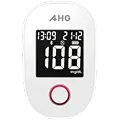
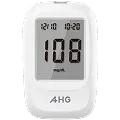
The three meters share 5-second results and 8-electrode strips; they differ in blood sample size, memory, power source and display.
| AHG-2022 | AHG-2285 | AHG-427B | |
|---|---|---|---|
| Blood sample | 0.8 µL | 0.5 µL | 0.7 µL |
| Test time | 5 seconds | 5 seconds | 5 seconds or less |
| Measuring range | 20–600 mg/dL | 10–600 mg/dL | 20–600 mg/dL (1.1–33.3 mmol/L) |
| Memory | 500 results | 1,000 results | 500 results |
| Power | Rechargeable, Micro USB | 2 AAA batteries | 2 AAA batteries (up to 500 tests) |
| Averages | Not listed | 7, 14 and 30 days | 7, 14, 21, 30, 60 and 90 days |
| In the box | Meter, lancing device, 25 strips, 25 lancets, cable | Meter, lancing device, 25 strips, 25 lancets, batteries | Meter, 30 safety lancets, 25 strips, 25 alcohol pads, batteries |
| AHG App | Compatible | Not connected | Compatible |
AHG-300 blood pressure monitor, the AHG-2022, AHG-427B glucose meters, the AHG-2419 body analyzer, the AHG-2433 nutrition scale. The app is available on the App Store and Google Play.
Yes. AHG blood glucose monitors and blood pressure monitors are FDA-cleared, CE-marked under the EU MDR, and manufactured under MDSAP- and ISO-certified quality systems, meeting the international and local regulatory requirements in every market AHG serves.
Yes, on AHG meters that support alternative site testing (AST) — check your model’s manual before using a site other than your fingertip. Forearm and palm results can lag behind fingertip readings after meals, exercise, or when your glucose is changing quickly, so always use a fingertip sample if you feel symptoms of low blood sugar or need to make an immediate treatment decision.
Yes. The strips include control-solution recognition, so the meter tells a control test apart from a blood test automatically. AHG can provide control solution on request.
Yes. The strips correct for hematocrit interference and compensate for temperature. The AHG-2285 supports a 20–70% hematocrit range. Test within the meter’s operating temperature of 41–113°F (5–45°C).
AHG test strips use 8-electrode technology that checks each test for factors known to affect readings, such as hematocrit, temperature, humidity and too little blood. The published accuracy performance for your meter is in its user manual.
The AHG-300 is accurate to within ±3 mmHg for blood pressure and ±5% for pulse rate, using the oscillometric method. It measures 57–255 mmHg systolic, 25–195 mmHg diastolic and a pulse of 40–199 bpm.
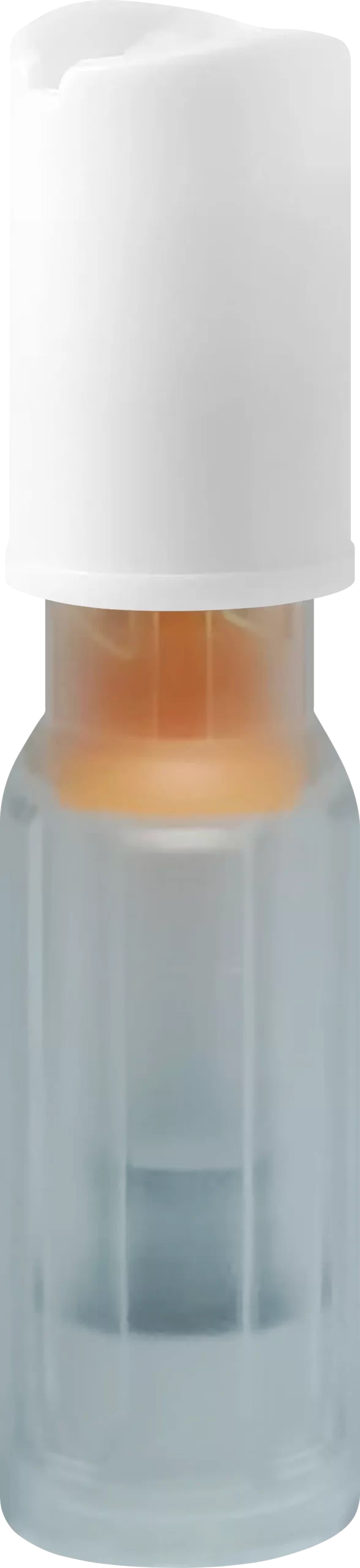
AHG strips are good for 6 months after you open the vial. Write the opening date on the vial and store strips at 36–86°F (2–30°C). The meter also detects humidity exposure and damaged strips.
“Lo” means your result is below the meter’s measurable range (severely low blood sugar) and “Hi” means it’s above the measurable range (severely high blood sugar). Treat either result as urgent: follow your care plan or contact your healthcare provider right away rather than retesting and waiting.
AHG-2022 and AHG-2285 use the GOD (glucose oxidase) enzyme method. AHG-427B uses GDH-FAD (glucose dehydrogenase-FAD), which is less prone to interference from other sugars in the blood.
It is a strip with eight electrodes on a single layer, so the meter can check both the blood sample and the strip before it reports a result. The eight checks are automatic code calibration, hematocrit interference correction, temperature compensation, sample-sufficiency detection, humidity-exposure detection, control-solution recognition, strip-damage detection and strip-and-meter compatibility.
Posture, stress, time of day and cuff position all change readings, and some people read higher in a clinic. Sit quietly for 5 minutes, keep your arm at heart level, and take readings at the same times each day. Show your doctor your home log so they can compare.
Small differences are expected because each test uses a fresh drop and every meter has normal test-to-test variation. Wash and dry your hands, use the first clean drop, and avoid squeezing the finger hard. If readings differ a lot or do not match how you feel, contact your healthcare professional.
A fingertip test and a lab blood draw are different samples taken at different times, so small differences are normal. Technique, hydration and recent food also matter. Bring your meter to your next appointment so your care team can compare it with a lab result. Do not change your treatment because of one reading.
Complete the application on the Distribution page: it has three short sections for business, contact and distribution information. AHG works with distributors, pharmacy chains, healthcare retailers, e-commerce sellers, hospital suppliers, home healthcare providers, regional importers and wholesalers. Questions go to [email protected].
Use only strips designed for your meter model; the meter checks strip-and-meter compatibility on every test.
No. All AHG models use automatic code calibration, which removes manual coding errors. You insert the strip and test.
Power the meter, set the date and time, wash and dry your hands, insert a test strip, and apply a small blood drop when the meter prompts you. Power depends on the model: the AHG-2022 charges by Micro USB, while the AHG-2285 and AHG-427B use two AAA batteries. Your model’s manual has the exact button steps.
Twist to open and remove the protection cap, press on your finger, then dispose of it safely. After activation the needle retracts into the body of the lancet, so it cannot be reused or cause an accidental needlestick.
Power differs by device:
About 5 seconds.
About 0.5 µL for the AHG-2285, 0.7 µL for the AHG-427B and 0.8 µL for the AHG-2022, which is a very small drop. The meter’s sample-sufficiency detection checks that enough blood was applied before it gives a result.
Sit with your back supported and feet flat, rest your bare upper arm at heart level, and wrap the cuff snugly on your upper arm as it shown on the cuff. The AHG-300 has cuff-wearing detection to warn you if the cuff is not positioned correctly and a Keep Still indicator to reduce movement. Stay quiet and still during the measurement.
Open your device’s product page and click User Manual in the Support & Resources section.
Yes. AHG blood glucose and blood pressure monitors are FDA-cleared, CE-marked under the EU MDR, and manufactured under MDSAP- and ISO-certified quality systems, meeting the international and local regulatory requirements in the markets AHG serves.
No. AHG lancets are sterile and single-use only. The needle retracts after use so it cannot be used again.
No. Do not share a meter, lancing device or lancet with anyone else. Blood, even in an amount too small to see, can remain on the lancing device and on the meter itself (the casing or the strip port) after testing, which can carry infections such as hepatitis B or C between people. Each person should have their own meter and lancing device.
No. AHG devices give you information to discuss with a healthcare professional. Do not diagnose yourself or change treatment based on a home reading alone.
Wipe the outer casing with a cloth dampened in a neutral detergent to clean it, then wipe it with a 70–75% medical alcohol wipe to disinfect, and let it air-dry before the next use. Don’t spray liquid directly onto the device or let liquid enter the strip port or battery compartment. Regular cleaning matters most when a device is used by more than one person under a caregiver’s supervision — AHG still recommends each person have their own meter and lancing device.
Put used lancets in a sharps container, or in a heavy-duty plastic container with a screw-on lid, and follow your local disposal rules. Retracted lancets still count as sharps. Test strips can go in normal household waste unless local rules say otherwise.
Prepare for five minutes before you measure:
Ask your healthcare professional, because testing frequency is personal. It is often higher for people who use insulin, are pregnant, have difficulty reaching their targets or have had low blood sugar.
Follow the schedule your healthcare professional gives you. A common approach is to measure at the same times each day, for example morning and evening, taking two readings one minute apart while seated.
The American Heart Association groups readings like this.
| Category | Systolic (top) | Diastolic (bottom) | |
|---|---|---|---|
| Normal | Below 120 | and | Below 80 |
| Elevated | 120–129 | and | Below 80 |
| Stage 1 hypertension | 130–139 | or | 80–89 |
| Stage 2 hypertension | 140 or higher | or | 90 or higher |
| Severe hypertension | Higher than 180 | and/or | Higher than 120 |
General information based on American Heart Association and American Diabetes Association guidance. It is not medical advice. Only your healthcare professional can diagnose a condition or set your targets.
A normal reading is below 120/80 mmHg. The top number is systolic pressure and the bottom number is diastolic pressure. Only a healthcare professional can confirm high blood pressure.
For most non-pregnant adults with diabetes, the American Diabetes Association general targets are 80–130 mg/dL (4.4–7.2 mmol/L) before meals and below 180 mg/dL (10.0 mmol/L) one to two hours after meals. In people without diabetes, a fasting reading below 100 mg/dL (5.6 mmol/L) is typical. Your healthcare professional may set different targets for you.
Sit quietly for five minutes and measure again. If it is still above 180/120, contact your healthcare professional right away. If you also have chest pain, shortness of breath, back pain, numbness, weakness, vision changes or difficulty speaking, call 911 (or your local emergency number).
For a low reading (below 70 mg/dL, 3.9 mmol/L), the common advice is 15 grams of fast-acting carbohydrate, then recheck after 15 minutes. For a high reading, retest and follow your care plan. Contact your healthcare professional or emergency services if you feel unwell, confused, or a result is far from your usual range.
Open the Support page, click Request Warranty Service, and complete the Warranty Claim Form. Have your model number and a description of the problem ready.
AHG’s warranty remedy is replacement, not repair: if a defect is confirmed, AHG sends a replacement unit rather than repairing the original. Start a claim through the Contact Us page or your original place of purchase — you’re responsible for return shipping. If your exact model has been discontinued, AHG will substitute a comparable current model. For cuffs, brush heads and other accessories, use the Replacement Parts & Accessories page.
Yes. The AHG international warranty covers your device across the countries AHG and its authorized distributors serve, so coverage carries over even if you bought from a distributor in a different country than the one you live in. Contact your local AHG distributor or AHG support to start a claim.
Your device’s model number and serial number (printed on the device or box), a short description of the problem, and proof of purchase. You can start a claim through Support page.
Consumables (test strips, lancets, cuffs and batteries) are not covered, and the warranty doesn’t apply to damage from misuse, not following the instructions, incorrect installation, damage outside the device’s protective casing, shipping damage, a removed or altered serial number or tampered quality-control seal, normal wear, cosmetic damage, electrical-surge damage, unauthorized repairs, or acts of nature, vandalism, theft or war.
AHG devices carry a Lifetime Limited Warranty to the original purchaser: for as long as you own your device, AHG will replace any unit found to have a defect in materials or workmanship. The warranty is non-transferable and doesn’t cover consumables (test strips, lancets, batteries) or damage from misuse.
Can't find the answer you're looking for? Our team can help.

Our dedicated support team is here to help you get the most from your AHG products.
Customer Support Page
Reach out anytime by email for personalized assistance and prompt responses.
[email protected]
Interested in partnering with AHG? Contact our team to discuss distribution opportunities.
[email protected]